Know why your Mac is slow

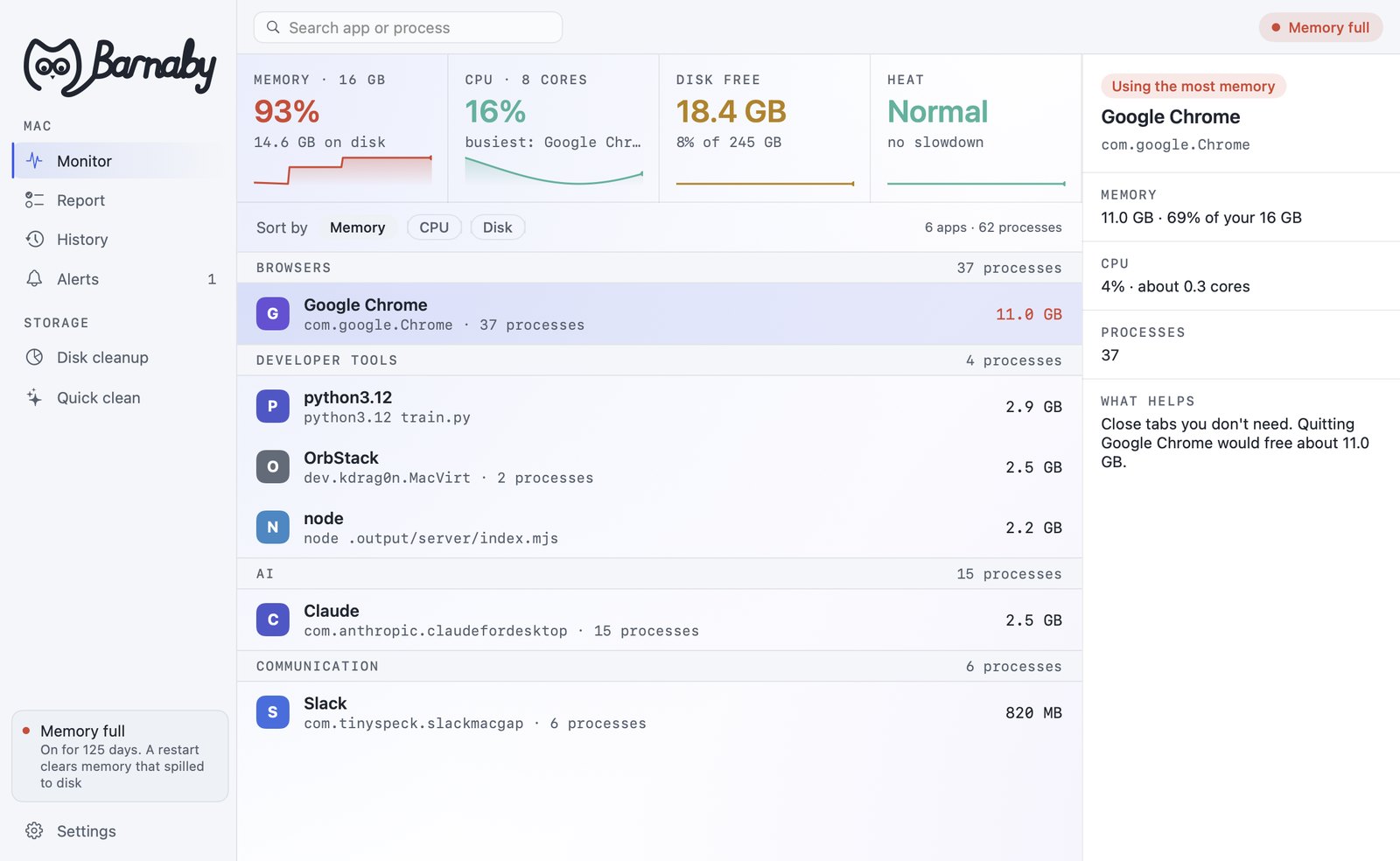
When your Mac drags, Barnaby tells you why in plain words and which app is behind it. Usually it’s something like Chrome holding 8 GB of memory.

Watch

See Barnaby at work.

Monitor

Barnaby checks memory, CPU, disk and heat all day.

Each one shows green, amber or red. When one turns red, Barnaby tells you which app is causing it and what to do about it.

Monitor
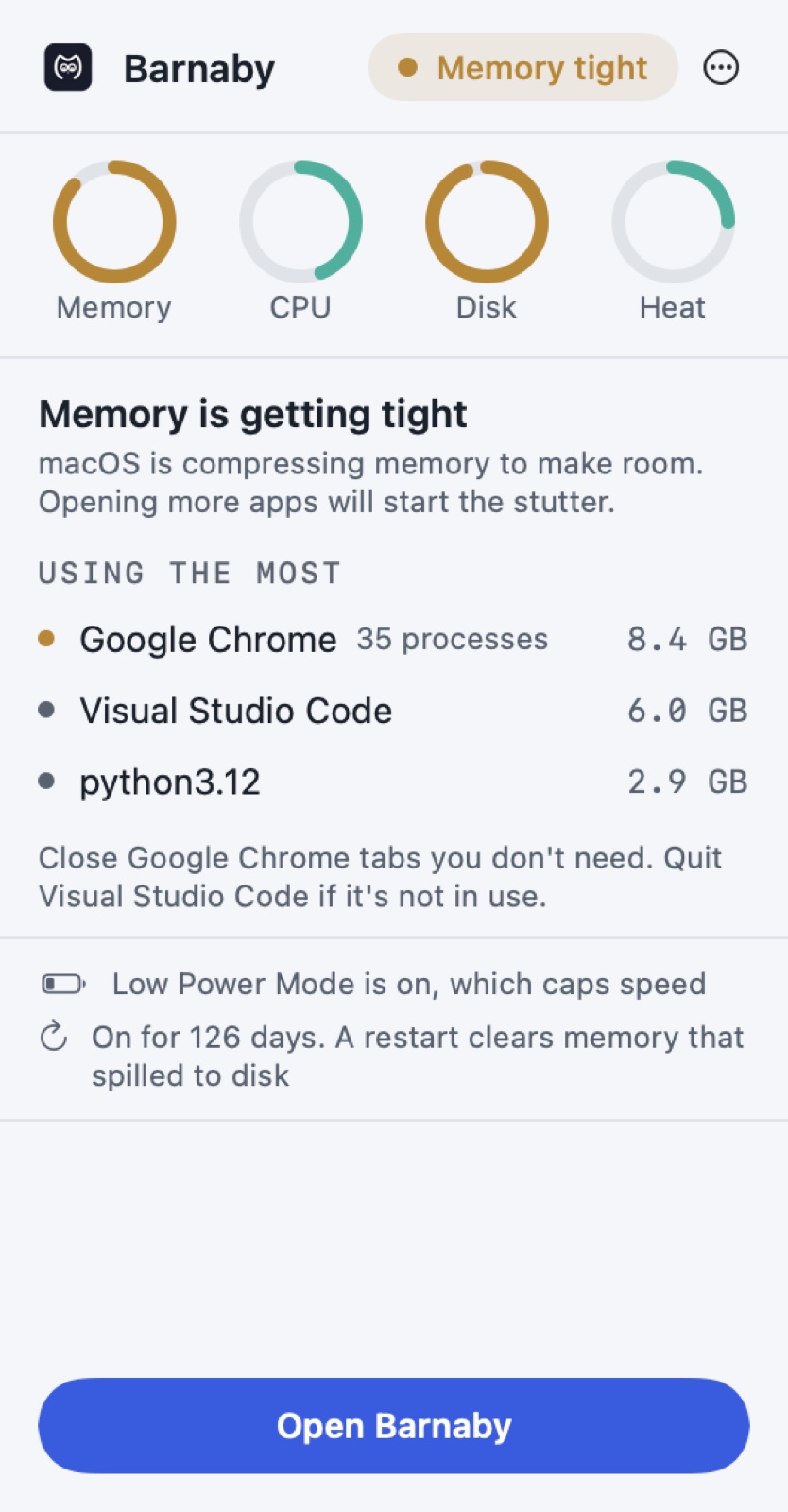
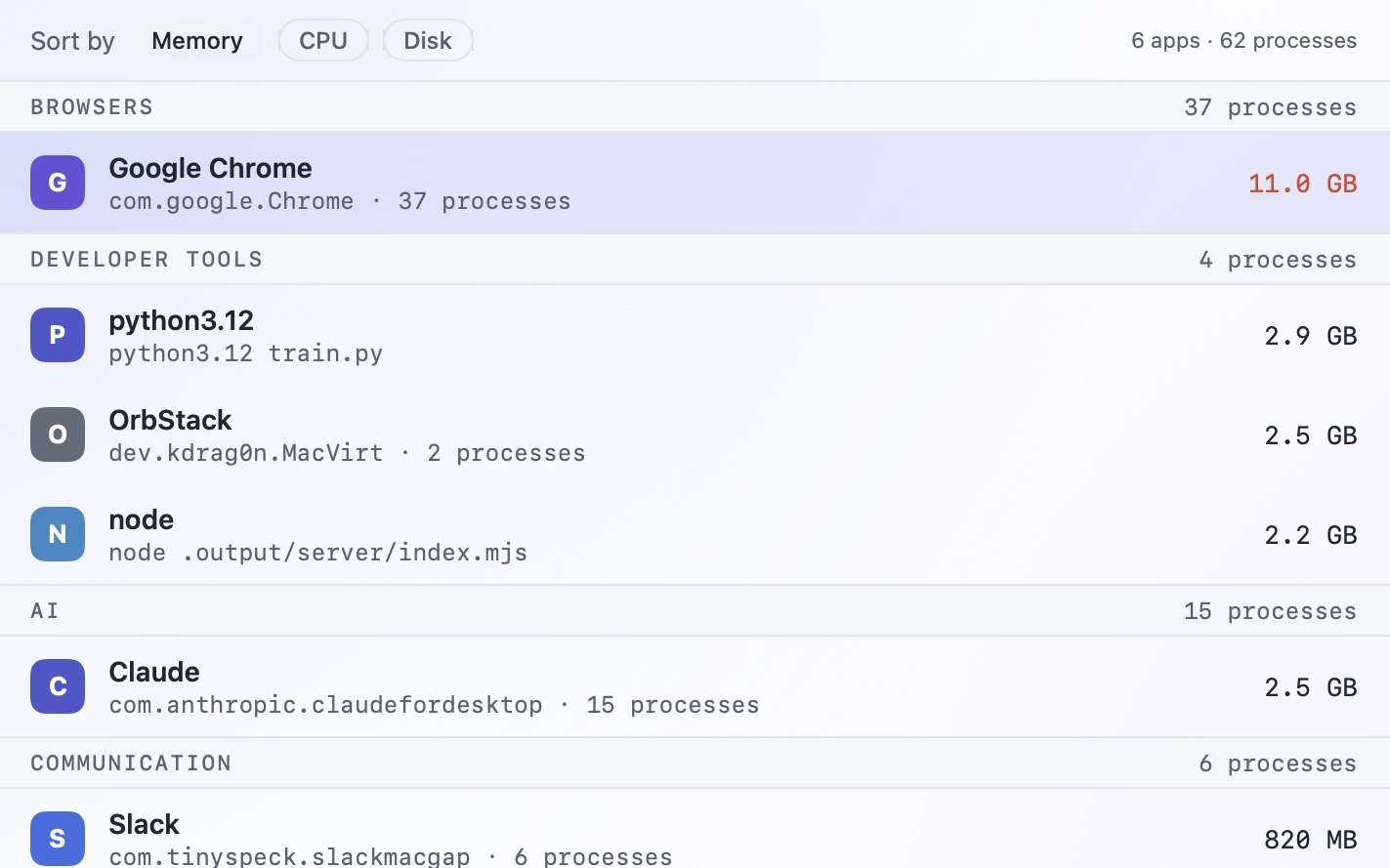
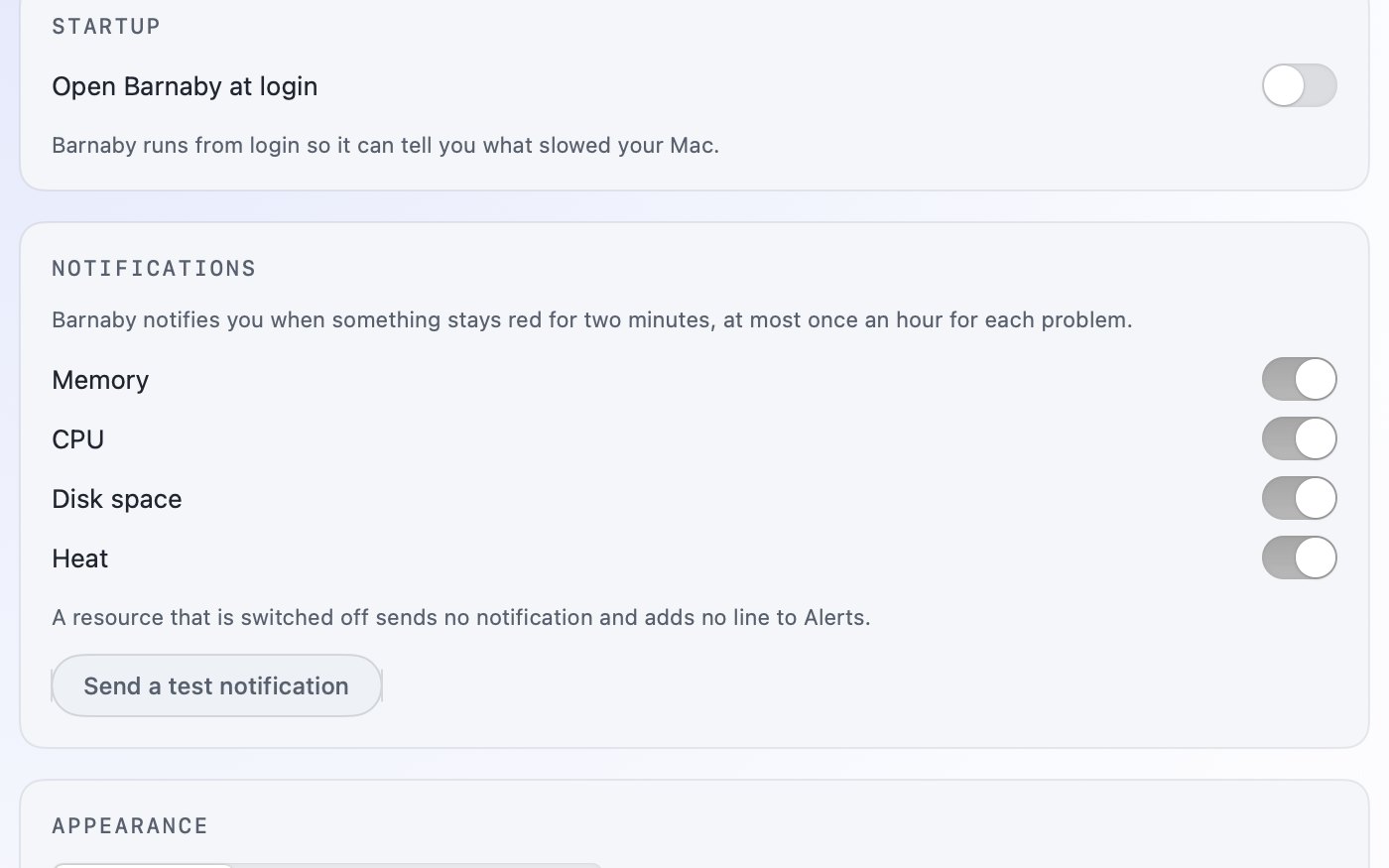
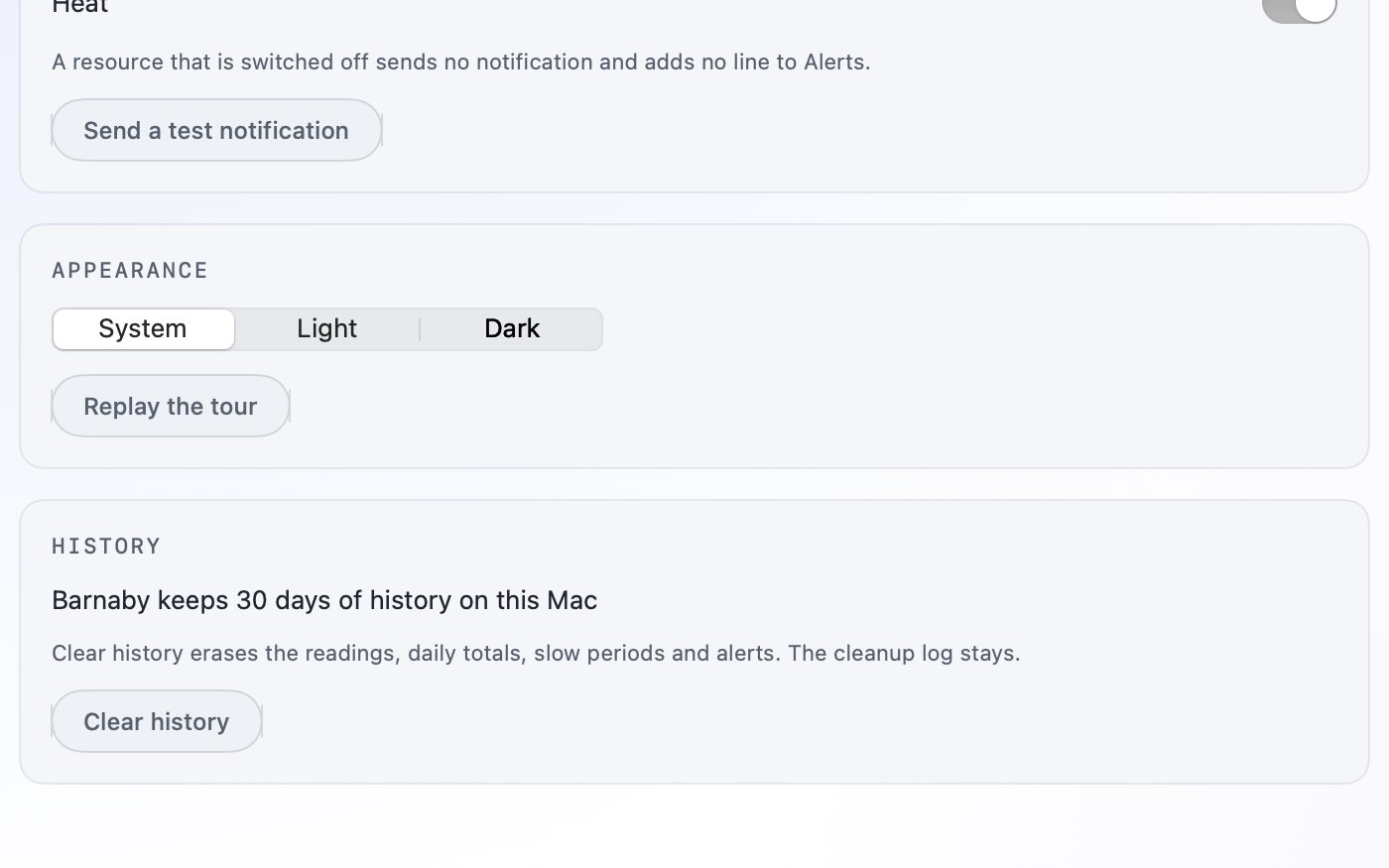
The Barnaby Monitor window with memory at 93% in red, Google Chrome selected, and the advice to close tabs you don’t need.The Barnaby menu bar panel: memory is getting tight, and Google Chrome, Visual Studio Code and python are using the most.The Monitor app list grouped into Browsers, Developer tools, AI and Communication, with Google Chrome’s 37 processes on one line.Barnaby notification settings with a switch for memory, CPU, disk space and heat.Barnaby settings: Barnaby keeps 30 days of history on this Mac.

Disk cleanup

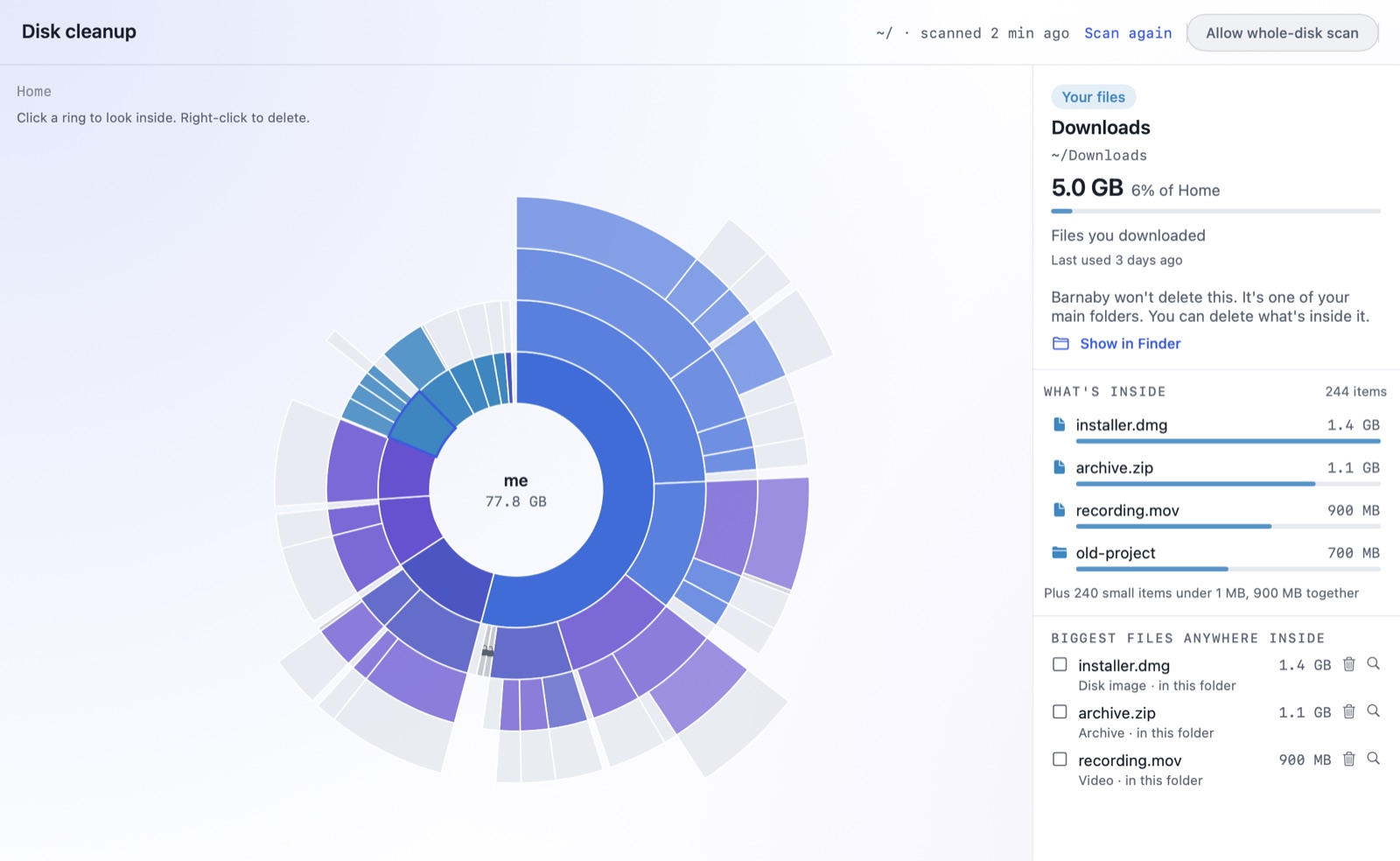
See what’s using your disk.

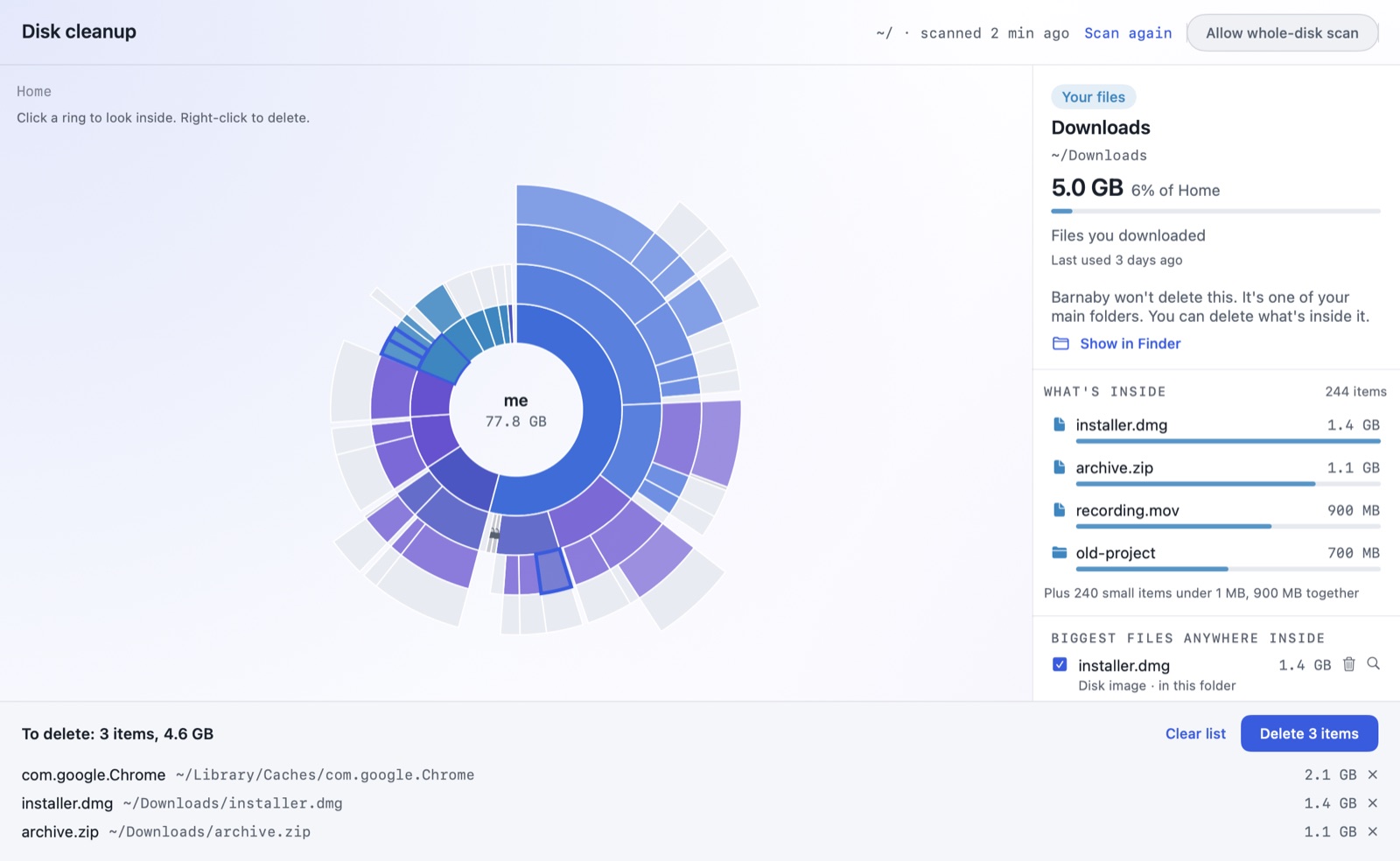
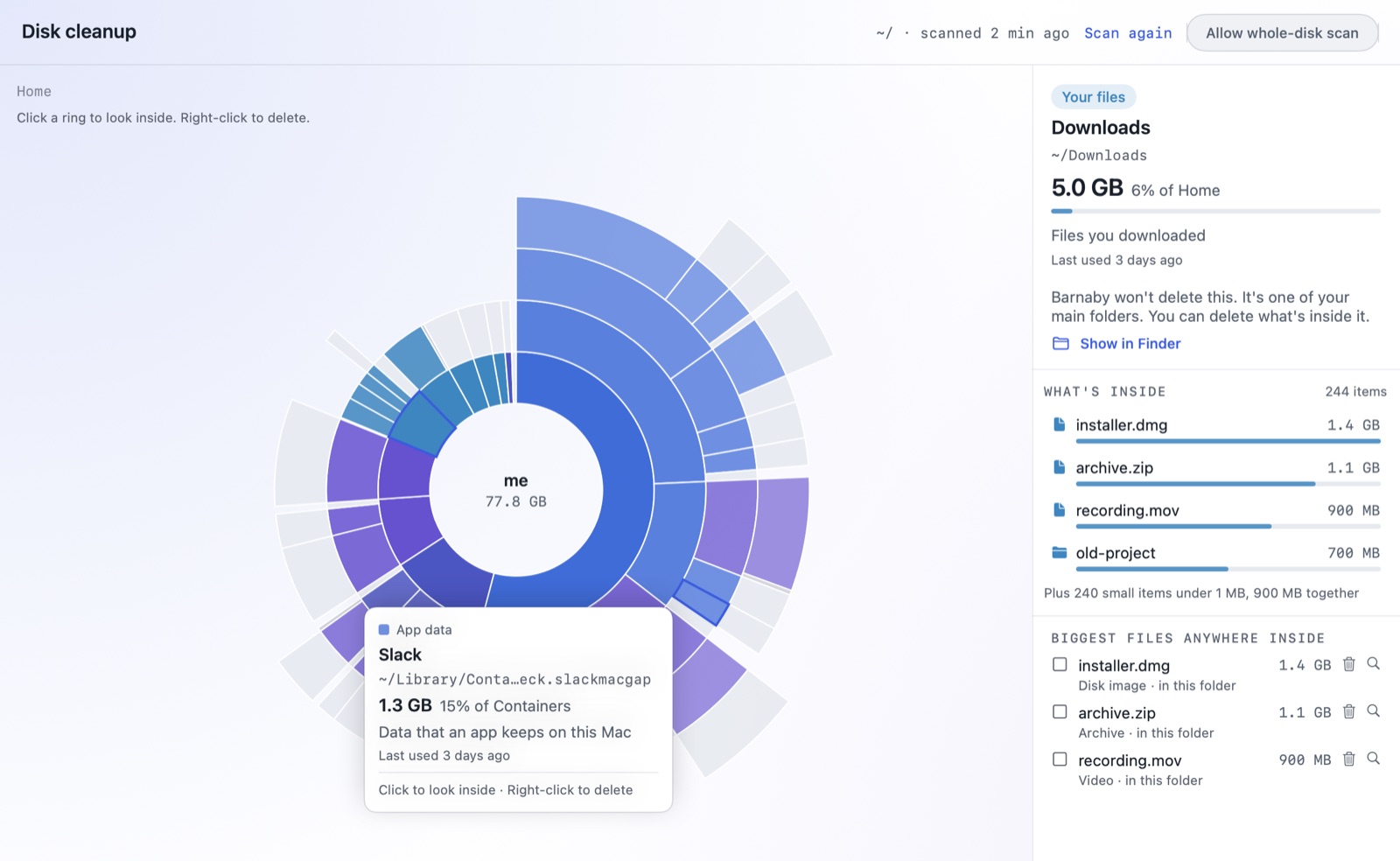
Folders are drawn as rings, with what’s inside each one in the next ring out. The biggest slices are where your space went. Click one to open it.

Disk cleanup
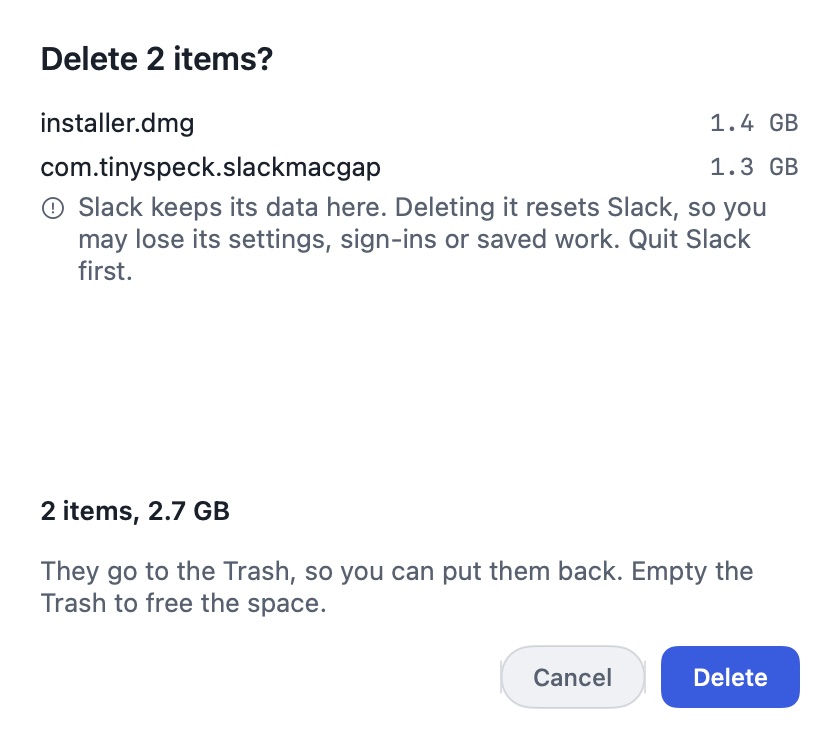
Disk cleanup with three items in the delete list at the bottom and a Delete 3 items button.Barnaby Disk cleanup with a hover card over the Slack ring showing its size and what it holds.The delete confirmation, warning that deleting Slack’s data resets Slack.The disk cleanup rings with the details panel explaining that a main folder can’t be deleted.

Quick clean

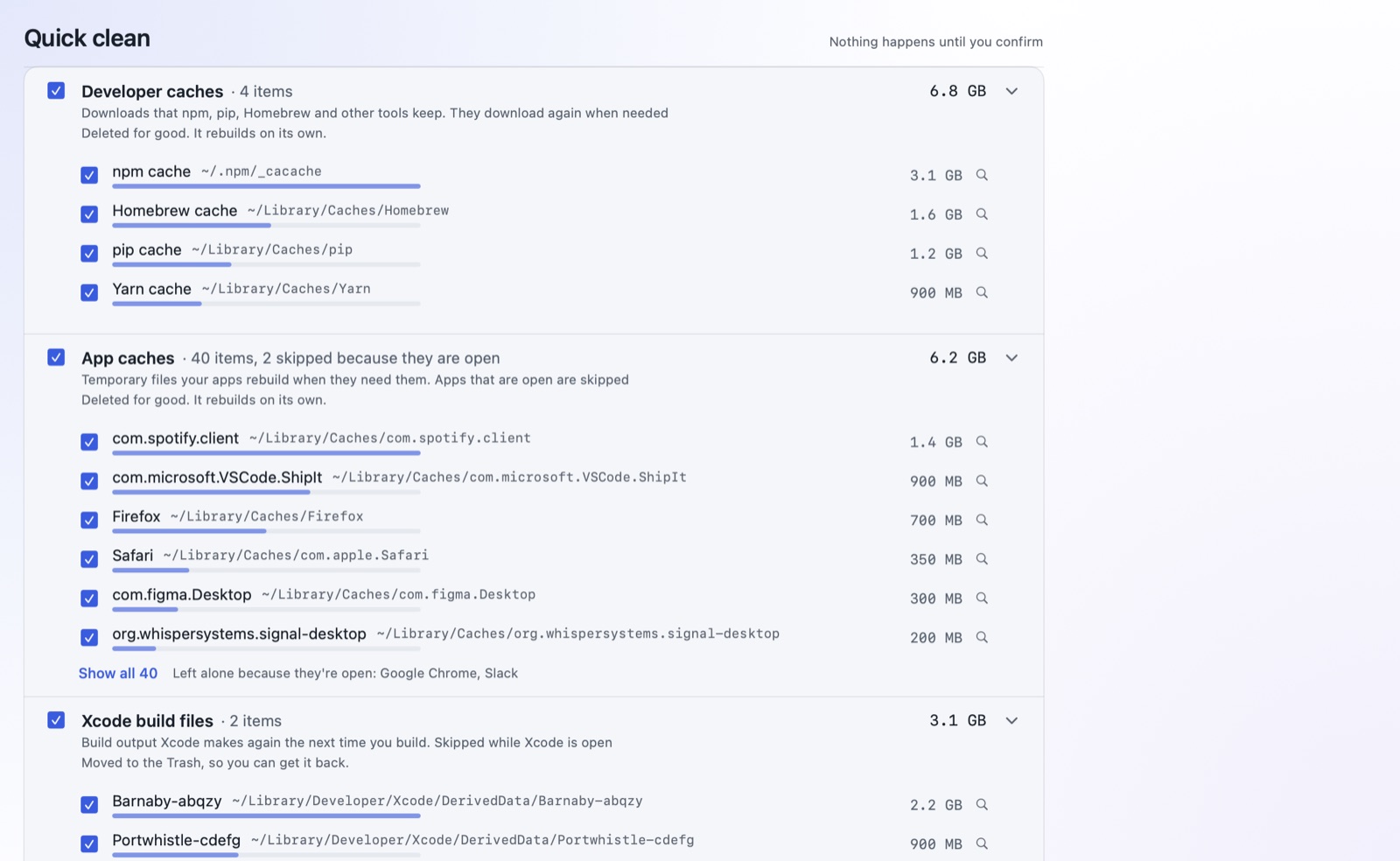
Delete caches and leftovers with one click.

Caches, old logs, npm and Homebrew downloads and Xcode build files pile up over months. Apps make them again when they need them, so they’re safe to clear.

Quick clean
Barnaby Quick clean: five groups of safe junk with their sizes, all ticked, and a Clean up button showing the total.Quick clean groups listing the apps that were skipped because they are open.Quick clean with the total space it will free.Quick clean listing only caches, logs and developer leftovers.

History

Look back over the last 30 days.

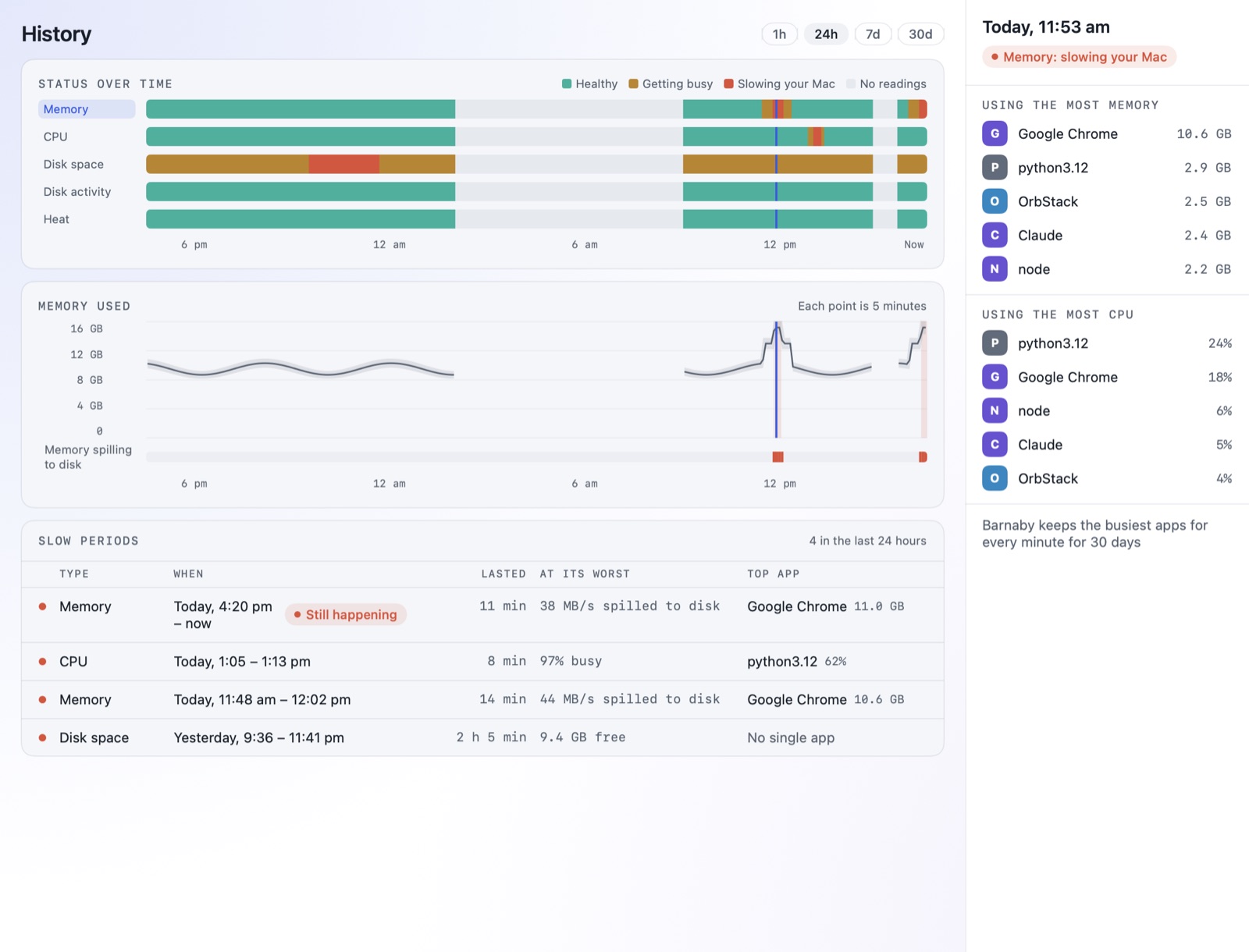
Barnaby keeps 30 days of readings, so you can see whether a slowdown is new and which app keeps causing it.

Barnaby History: a status strip for each of the five resources over 24 hours, a chart of memory used, and a list of slow periods.

Every minute, for a month

Memory, CPU, disk and heat each get a coloured strip. Click any point to see which apps were busiest at that moment.

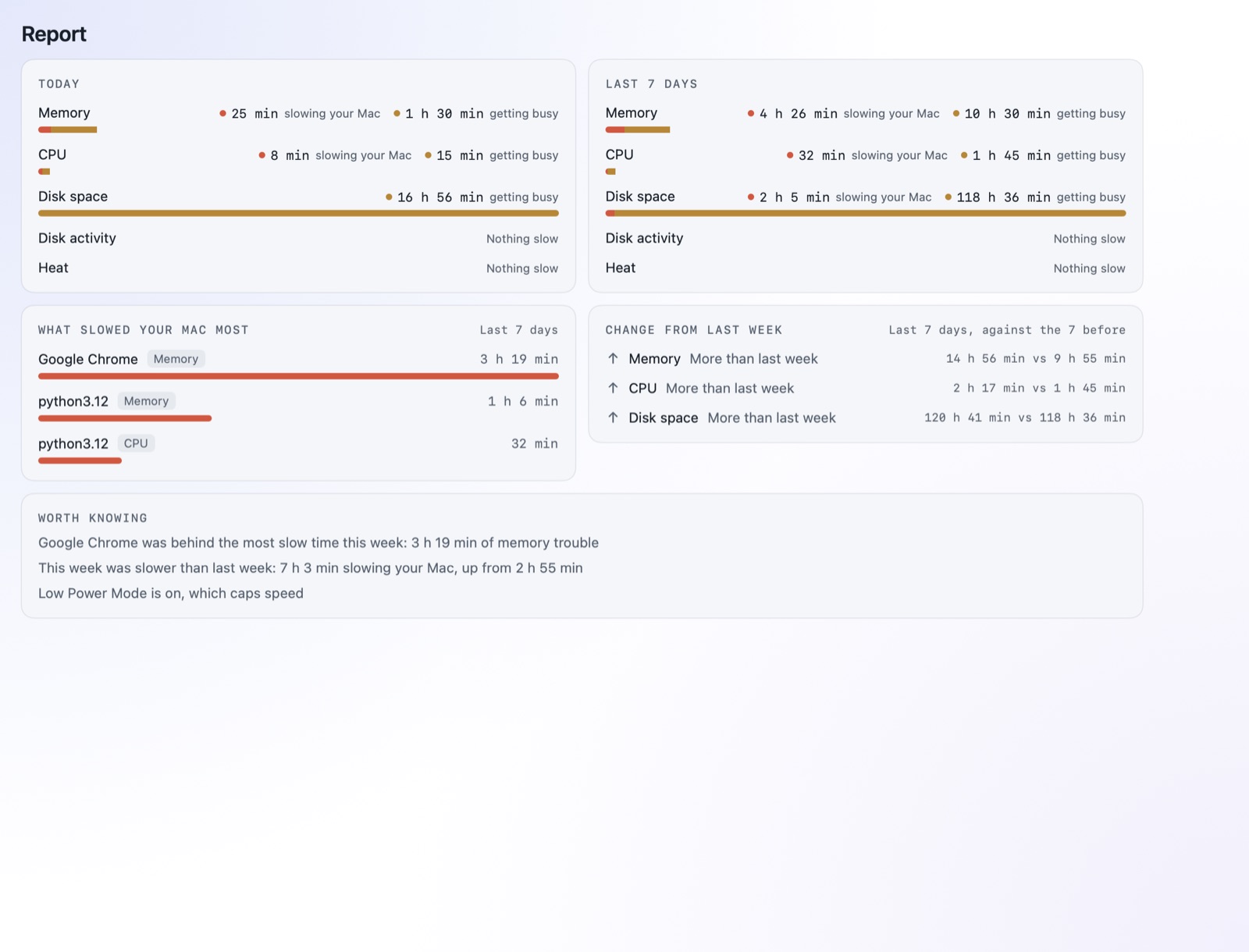
Barnaby Report: slow time today and over the last 7 days, what slowed the Mac most, and the change from last week.

The weekly report

How long your Mac was slow this week and which apps caused it, compared with the week before.

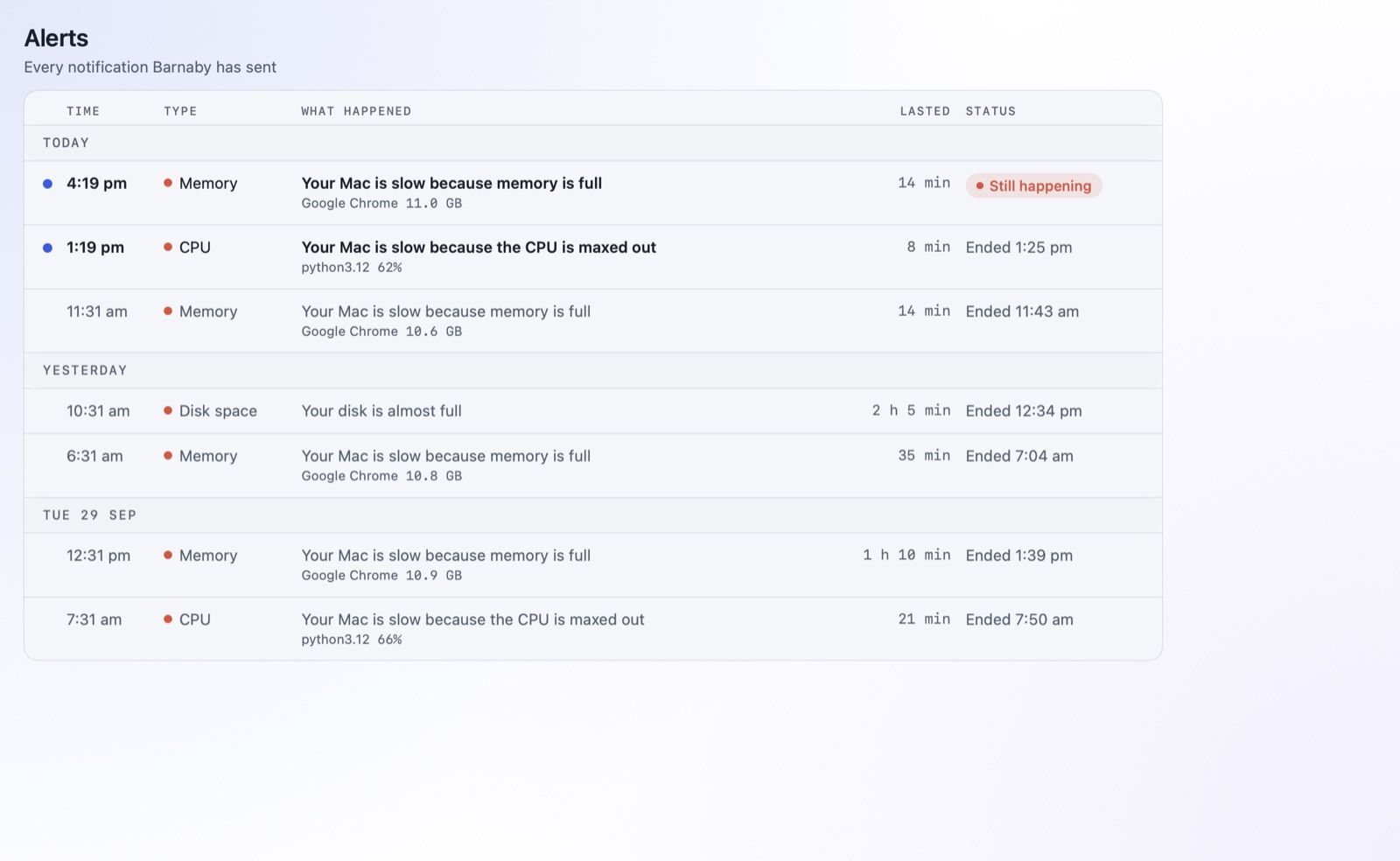
Every alert in one list

Each alert shows how long it lasted and which app caused it.

Barnaby Alerts: notifications grouped by day, with the app behind each one and how long it lasted.

Barnaby won’t quit your apps.

You decide what to close
Barnaby suggests what to close. It never quits, pauses or changes another app itself.
No account
Your readings stay on your Mac. Once a day Barnaby asks barnaby.live if there’s a newer version, and you can turn that off in Settings.
Most deletes go to the Trash
Nothing is deleted until you confirm. Caches and logs are deleted right away because apps rebuild them. Everything else goes to the Trash.

Install

Get Barnaby.

One download for Apple silicon and Intel Macs. You’ll need macOS 13 or later.
Download Barnaby

Version 0.1.9 · 5.7 MB · macOS 13 or later

  1. Drag it into Applications

    Open the download and drag the owl onto the Applications folder.

  2. Open it

    Double-click Barnaby in Applications. The first time, macOS checks that it came from a known developer and asks whether to open it. Click Open.

  3. Find it in the menu bar

    Look for the little owl at the top of your screen. Click him for a quick read, or open the full window from there.

Find out what’s slowing your Mac.

Barnaby lives in your menu bar. Click the owl any time to see what’s going on.

Download Barnaby